Introduction: How to Get the Most Out of This Training
| Site: | UCSF Collaborative Learning Environment |
| Course: | Advanced Counselor Skills Pre-Training Course |
| Book: | Introduction: How to Get the Most Out of This Training |
| Printed by: | Guest user |
| Date: | Saturday, July 18, 2026, 5:32 AM |
Description
Introduction
Introduction, Screen 1 of 6
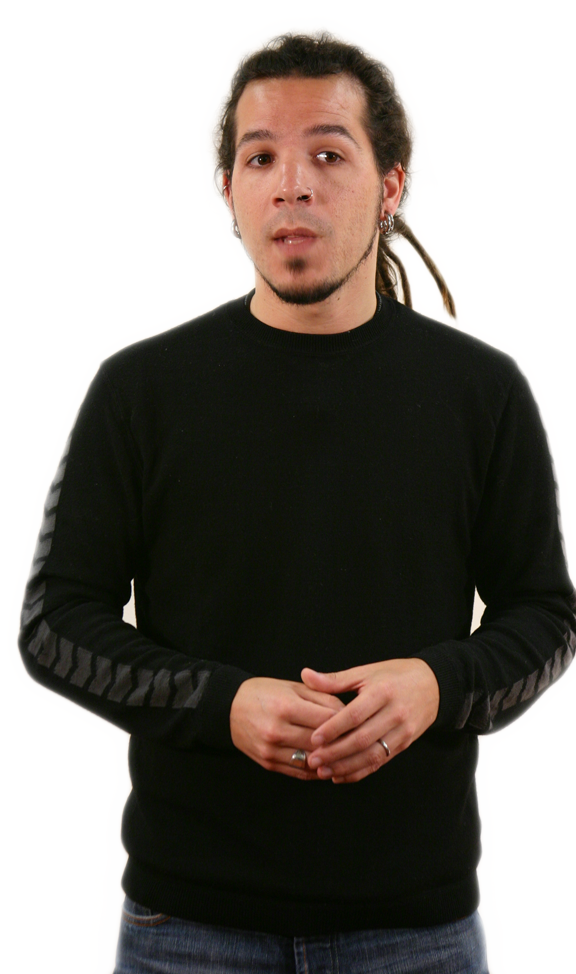
How to Get the Most Out of This Training
Hi, my name is Francisco. I’m a trainer with the UCSF Alliance Health Project, and I’ll be leading you through this course.
Click the Forward Arrow below, (lower right) to go the next screen.
How to Get the Most Out of This Training
Hi, my name is Francisco. I’m a trainer with the UCSF Alliance Health Project, and I’ll be leading you through this course.
Before you get started on the learning portion of the training, we want to go over some technical details with you. Understanding these details helps to ensure that this online experience will be enjoyable and productive for you.
Click the Forward Arrow
below, (lower right) to go the next screen. Introduction, Screen 2 of 6

Important “How To” Information about This Course
Important “How To” Information about This Course
There are ten “modules” in this training. Each module is divided into “screens.” We’ve designed the course to make it easy to know where you are in the training and what you have to do to proceed or return to an earlier module or screen.
You must have Flash installed to view certain screens and exercises in this training. If you can view videos you already have what you need. If you need to install a Flash viewer, you can download it for free from Adobe.com. If you have a Flash blocker in use you must disable it.
You may be asked to view PDF documents. They are set to open in a separate browser window so you won't have to leave the training to view them. Some browsers use "tabs" instead of opening a new window. If that is the case with the browser you are using, look for the tabs at the top of the browser window.
Click the Back Arrow icon  which appears at the top right and bottom right of each screen, to go to the previous screen.
which appears at the top right and bottom right of each screen, to go to the previous screen. Now, click the Forward Arrow
 below (lower right), to go the next screen.
 Introduction, Screen 3 of 6
 Using Icons to Navigate through an Online Course
Click the Forward Arrow below, (lower right) to go the next screen.
Using Icons to Navigate through an Online Course Now that the warning is out of the way, I'll tell you about other ways to navigate through the course.
In the Table of Contents for each module, shown to the left, you can click on any screen title. This can help you find your place easily if you get lost or if you log out and return to the training later.
You can also use the "Jump to . . . " feature, the pull-down menu box all the way at the top right of the screen. When using the "Jump to . . ." feature, the text in the box reflects the screen you are on right now. When you click on the down arrow in the right-hand corner of the box, a menu of all the other modules in the training appears. Drag your cursor to the name of the screen you want, click, and you will jump to that module.
Click the Forward Arrow
below, (lower right) to go the next screen. Introduction, Screen 4 of 6

The Bread Crumb Trail
Another way to move around the course is to use the "bread crumbs feature," which sits just below the name of the course in the upper left part of the screen. On this page, it looks like this:
AHP Home > BCIT > Books > Introduction: How to Get the Most Out of This Training
They are called "bread crumbs," because they show you a trail out of the current screen and back toward the overview of the training.
The right-most crumb is the current module of the training you are in, in this case, the Introduction.
The next crumb shows you the type of section this is, in this case, Books, which refers to the format of all the text Modules. The other section types are Resources and Quizzes. Clicking on the section type will open a page that lists all the pages of that type in the training.
You can view all the types of sections in all of the Modules by clicking on BCIT, which refers to the home page of the whole course. Finally, by clicking on the left-most bread crumb, AHP Home, you can go back to AHP's Online Training Center home page.
The Bread Crumb Trail
Another way to move around the course is to use the "bread crumbs feature," which sits just below the name of the course in the upper left part of the screen. On this page, it looks like this:
AHP Home > BCIT > Books > Introduction: How to Get the Most Out of This Training
They are called "bread crumbs," because they show you a trail out of the current screen and back toward the overview of the training.
The right-most crumb is the current module of the training you are in, in this case, the Introduction.
The next crumb shows you the type of section this is, in this case, Books, which refers to the format of all the text Modules. The other section types are Resources and Quizzes. Clicking on the section type will open a page that lists all the pages of that type in the training.
You can view all the types of sections in all of the Modules by clicking on BCIT, which refers to the home page of the whole course. Finally, by clicking on the left-most bread crumb, AHP Home, you can go back to AHP's Online Training Center home page.
Now, click the Forward Arrow below (lower right), to go the next screen.
below (lower right), to go the next screen. Introduction, Screen 5 of 6
 Outside Material. There are places in this training where we have included links to outside web sites that will offer you more information on an array of related topics.
 PDF. There are also places in this training where we have included links to PDF documents that will offer you more information on an array of topics. These PDFs are easy to download and print.
 Printing Out a Hard Copy of the Whole Training. This feature gives you some flexibility to read text away from your computer. Please note that you must post to the discussion board and fill out the course evaluation online. Also, some material may be harder to read in printed form. To print any module, click on the book and printer icon in the upper left part of the screen.
Click the Forward Arrow below, (lower right) to go the next screen.
More Navigation Bells and Whistles
Here are some other navigation features that will help you take advantage of everything we have put together in the course.
Outside Material. There are places in this training where we have included links to outside web sites that will offer you more information on an array of related topics.PDF. There are also places in this training where we have included links to PDF documents that will offer you more information on an array of topics. These PDFs are easy to download and print.Printing Out a Hard Copy of the Whole Training. This feature gives you some flexibility to read text away from your computer. Please note that you must post to the discussion board and fill out the course evaluation online. Also, some material may be harder to read in printed form. To print any module, click on the book and printer icon in the upper left part of the screen.Click the Forward Arrow
below, (lower right) to go the next screen. Introduction, Screen 6 of 6
 Contact Us
For general questions contact:
Stephen Scott
Training Services Coordinator
UCSF Alliance Health Project
415-502-7270
415-476-7996 (fax)
E-mail: stephen.scott@ucsf.edu
Agency Info
Administrative Offices
UCSF Alliance Health Project
1855 Folsom St. Suite 670
San Francisco CA 94103
415-476-3902
415-476-7996 (fax)
Web Site: www.ucsf-ahp.org
Contact Us If you have any questions about anything in the course or the course process, please feel free to contact us. Here are a few different contacts to help you with specific types of problems.
For general questions contact:
Stephen Scott
Training Services Coordinator
UCSF Alliance Health Project
415-502-7270
415-476-7996 (fax)
E-mail: stephen.scott@ucsf.edu
Agency Info
Administrative Offices
UCSF Alliance Health Project
1855 Folsom St. Suite 670
San Francisco CA 94103
415-476-3902
415-476-7996 (fax)
Web Site: www.ucsf-ahp.org
Now that you have read all this technical information, we are ready to start the training.
Please click on the Up Arrow just to the right of this line. It will take you back to the main level list of modules for this course.
Please click on the Up Arrow
just to the right of this line. It will take you back to the main level list of modules for this course.