
How to Add Video to This Course
Completion requirements
(Download all the video files from Box.com to your computer unless the Box folder is synced.)
- Click Turn Editing On in the upper right corner
- Navigate to the Week you'd like to add a video to, then click + Add activity or resource at the bottom of the Week
- Select Media Resource
 then click Add
 - Name the video and fill out the description field as necessary
- Click Add Media
- Media plug-in window will pop up. Click Add New in the upper right corner, then select Media Upload.
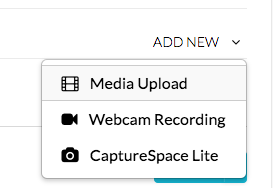
- Click Choose a file to upload, then select a file from your computer
- File upload is completed when the progress bar turns green. Click Back to Browse and Embed at the bottom of the page.
- You will see the list of all the media you have on this page. Navigate to the file you have just uploaded and click the down arrow in the Select button, then choose the player size from the menu (Large/Medium/Small).
- You will be directed back to the Adding New Media Resource page. Click Save and return to course or Save and display. Note: Don’t panic when you see the error message, “No source video was found – Entry in process”. This means the system is still processing the video but will be ready in a few minutes.
Last modified: Monday, November 27, 2017, 4:07 PM