
Setting up Zoom Meetings
Create an account at https://ucsf.zoom.us/signin using your UCSF myaccess credentials.
Through UCSF you should have an “education” account. You can confirm by clicking on “Account Profile” on the right, then “profile”. UCSF Education accounts will allow you to host and record meetings with unlimited minutes for up to 300 participants and use breakout rooms. NOTE: Participants do not need to have a UCSF Education account, only the host.
If you do not have a UCSF Education account, contact campus IT.
Online: https://ucsf.service-now.com/ess/
Main Phone: (415) 514-4100
Email: itservicedesk@ucsf.edu
There is an always-open test site here: join a test meeting anytime https://ucsf.zoom.us/test

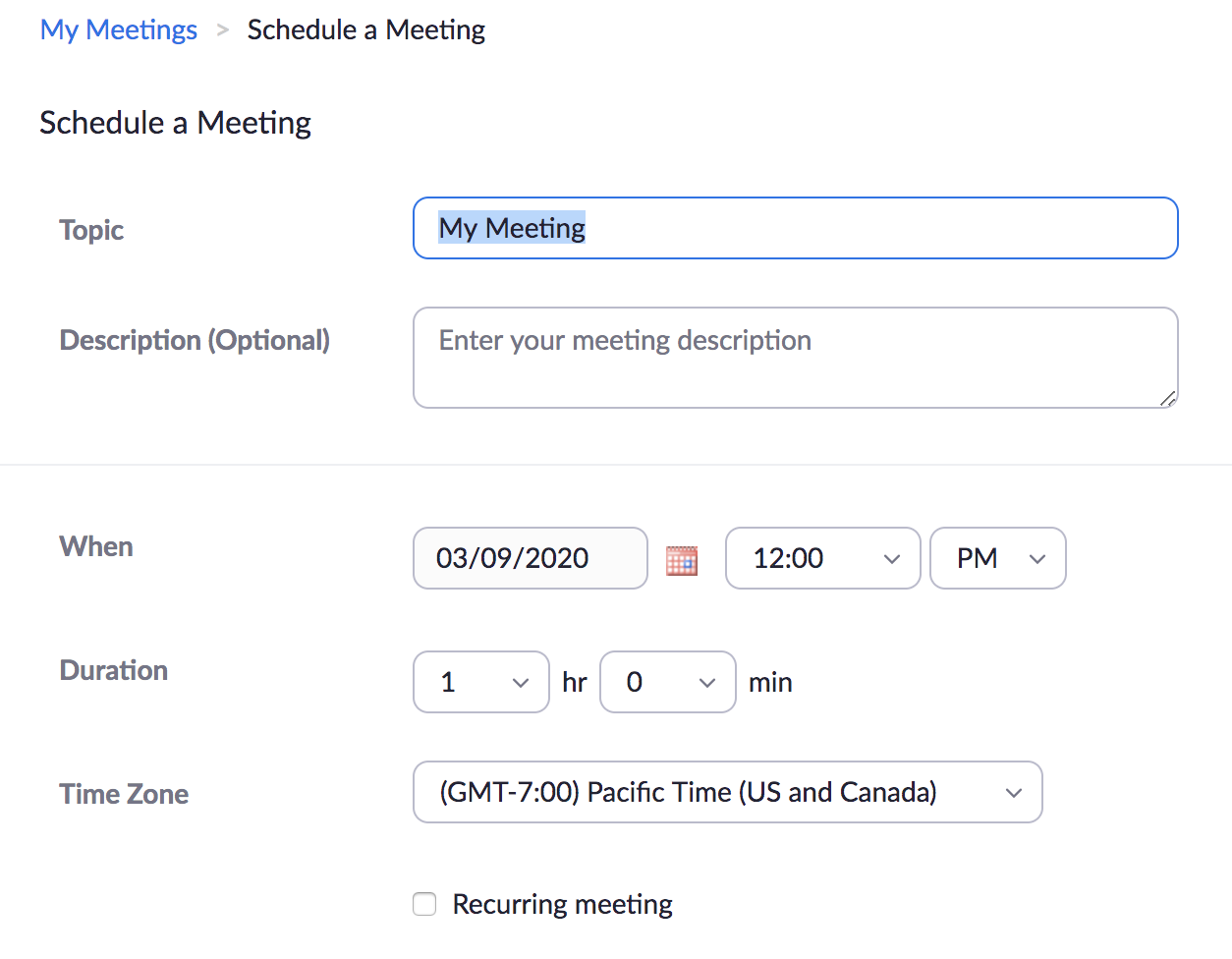
To schedule your sessions, select “schedule a new meeting”. Enter the title, day, time and select “recurring meeting” to repeat your session as often as needed. Do not require a password. You may create polls under advanced options if you have the option checked under “meeting settings”. You may schedule meetings using your personal meeting ID which creates a consistent link for all your meetings.
Note: You can only host 1 meeting at a time on your account. There is no way to run two events at the same time. This is why the person leading the meeting needs to schedule and host the meeting. You can assign an alternative host if someone else will be filling in or co-hosting with you. Alternative hosts must also have a UCSF Education acct, you may add their UCSF email under advanced options.
Select “Settings” on the left menu to select useful features like mute participants upon entry, polls and non-verbal feedback.