
Video Assignment Instructions
How to record a video using Zoom
- Sign up for a free account at https://ucsf.zoom.us/ using your myaccess credentials.
- Host/Start a meeting with video
- Record your meeting
- When you are done recording, Leave the meeting.
- Upload the video file (MP4) to the Assignment Forum (instructions below)
*For best video quality, use a headset mic and find a quiet, well lit space with a strong WIFI signal to do the recording.
Here are more instructions on how to record your zoom session.
Notes about the Recording Layout
You can record the active speaker, content sharing with active or sub video panel, gallery view or M4A audio.
By default, only the host can record each Zoom meeting. This can be changed by having the host allow specific users to record the meeting through the Manage Participants panel. Each resulting recording will be in the layout of choice by the person who is recording.
The Zoom meeting will be recorded in the current layout that the host is recording. For example, if the host is recording in Gallery View the recording will be in gallery view. This is independent of what the participants are viewing, so if a participant is watching the meeting in active speaker view and they start recording because the host granted them recording the resulting recording will be in Active Speaker.

How to upload your video
- Navigate to the Assignment Forum
- Click Add a new discussion topic
- Fill out the Subject input field
- In the Message field, click the embed media icon in upper right corner


- Click Add New and select Media Upload
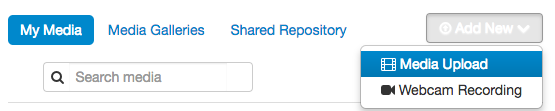
- Click Choose a file to upload
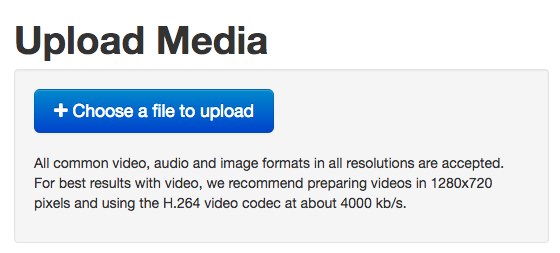
- Select a video file from your computer
- Once the file has been uploaded, name the video and click Save

- Click Back to Browse and Embed (under the Save button)
- Now you’ll see the list of all the videos available for you to post. Find the video you’d like to post to the forum and select the video player size from Select pulldown menu.
- In the preview window, click Embed media on the bottom left corner. Note: It may take a few minutes to upload depending on the size of the video.
- The link to your video has been created and shows up in the Forum’s message field

- Click Post to forum